CSV to Google Contacts: Import Directly, or Convert to vCard First
Honest answer first: if your goal is getting a CSV into Google Contacts on the web, you don't need this converter — Google imports CSV natively, and the steps are right below. You need the vCard route when the phone appis involved, when headers won't map, or when the file has to travel on its own. Both routes are on this page.
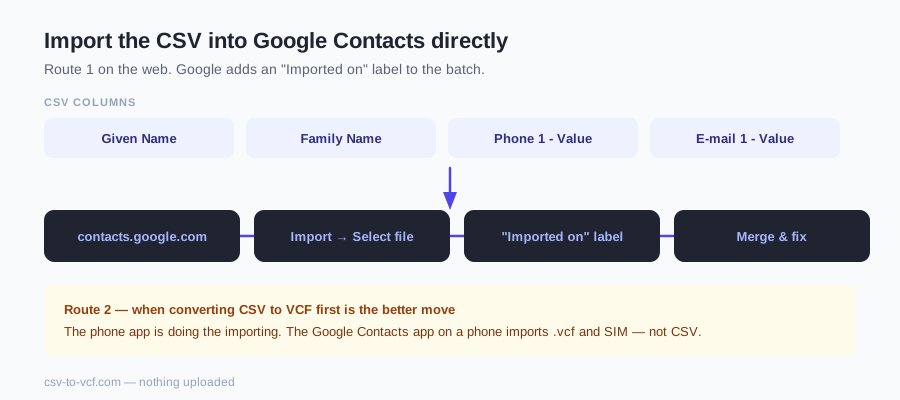
Route 1 — import the CSV into Google Contacts directly
- Open contacts.google.com in a desktop browser and sign in to the account that should own the contacts.
- In the left sidebar, click Import, then Select file and pick your .csv (labels as of 2026).
- Confirm. Google creates the contacts and tags the whole batch with an "Imported on" label— keep that label until you've checked the result, because it's also your undo button: select the label, select all, delete, and the import is gone.
- Spot-check a few contacts. If accents look garbled, re-save the file as CSV UTF-8and re-import; if numbers or emails landed in odd fields, your headers didn't map — that's a Route 2 case.
- Run Merge & fix (left sidebar) to collapse any duplicates the import created.
Syncing does the rest: once the contacts are in your Google account, every phone signed into it gets them without any file handling.
Route 2 — when converting CSV to VCF first is the better move
- The phone app is doing the importing. The Google Contacts app on a phone imports .vcf and SIM — not CSV. A vCard file opened on the phone imports on the spot, no computer needed.
- Your headers won't map.Google's importer guesses from column names and doesn't ask. The converter below shows every column, lets you assign each one explicitly, and previews the first contacts before you commit.
- The file has to travel. A .vcf sent to a colleague opens natively on their phone or mail client; a CSV of contacts is just a spreadsheet they have to figure out.
- The destination isn't Google. CRMs, email-signature tools and older devices often accept only vCard — and sometimes a specific version. Here you choose 2.1, 3.0 or 4.0 explicitly, and can emit one combined file or a zip with one .vcf per contact.
- You'd rather skip the cloud entirely. Device-to-device via a .vcf file means the list never enters any account. The conversion below runs fully in your browser — nothing is uploaded, verifiable in the network tab.
Drop your CSV, Excel or JSON file here
.csv, .xlsx, .xls or .json — up to 10 MB / 50,000 contacts, never uploaded.
Going the other way: Google Contacts out to a file
Export is built in too: contacts.google.com → Export offers Google CSV, Outlook CSV and vCard (for iOS Contacts). So to move a Google address book to an iPhone's local contacts or any vCard-only app, export as vCard — no converter involved. And if someone hands you a .vcf that you need as a spreadsheet, the VCF to CSV tool reverses it, one row per contact.
Excel workbook instead of CSV? The Excel to VCF page reads .xlsx directly and skips the save-as-CSV step and its encoding traps.
CSV to Google Contacts — FAQ
Can Google Contacts import a CSV file directly?
Yes — on the web. Open contacts.google.com, choose Import in the left sidebar, select your .csv and confirm. Google adds an 'Imported on <date>' label to the batch so you can review or undo the lot. This page exists because the direct route is the right answer surprisingly often — you only need a converter for the cases further down.
Can the Google Contacts app on my phone import CSV?
No — the phone app's import screen accepts vCard (.vcf) files and SIM contacts, not CSV. That is the single most common reason to convert: turn the CSV into a .vcf here, put the file on the phone, and the Contacts app opens it natively. The conversion runs in your browser; the list is not uploaded anywhere.
Why did my CSV import into Google Contacts with garbled names?
Almost always encoding. Google's importer reads UTF-8; a CSV saved from Excel in a legacy encoding turns accents and non-Latin names into gibberish. Re-save the file as CSV UTF-8 (Excel has it as an explicit 'CSV UTF-8' type in Save As) and import again — the mangled batch is easy to remove via its import label.
Which CSV headers does Google Contacts understand?
Its own export format maps perfectly — headers like Given Name, Family Name, 'E-mail 1 - Value', 'Phone 1 - Value'. Plain headers such as Name, Email, Phone usually map for the basics too. Columns it does not recognize don't always land where you expect, so spot-check a few contacts after importing; if your headers are unusual, converting to VCF with manual column mapping gives you explicit control instead of guesswork.
Does Google Contacts accept VCF files too?
Yes — the same Import dialog takes .vcf, and so does the phone app. vCard 3.0 is the safe default; it's also the version Google's own 'Export as vCard (for iOS)' produces. So the practical rule: CSV is fine when you're importing on the web, vCard works everywhere.
How do I get contacts OUT of Google Contacts as a vCard?
You don't need a converter for that direction either: contacts.google.com → Export → 'vCard (for iOS Contacts)'. If what you actually want is a spreadsheet from a .vcf someone sent you, that's the reverse tool on this site — VCF to CSV.
Why did the import create duplicates, and how do I fix them?
Google imports every row as a new contact; it doesn't overwrite silently. Afterwards, open 'Merge & fix' in the left sidebar — it detects contacts with matching names, emails or numbers and offers one-click merges. Importing the same file twice is the classic cause, and the 'Imported on' label lets you delete a duplicate batch wholesale.
Is my contact list uploaded when I convert it here?
No. The CSV is parsed by JavaScript on your own device, the preview and mapping run locally, and the .vcf is written on your machine — there is no upload endpoint on this site at all. Importing to Google Contacts afterwards is of course a transfer to your Google account; the conversion step itself adds no third party in between.
Import and export steps as documented by Google as of 2026, not verified against the live UI here. Last checked: August 26, 2026. About this site